Video Tutorials & Installation Guides

General Audio Included

1. Full Tutorial for New AV Members

A comprehensive guide for new AV members covering how to add schedules, the task assignment workflow, and everything they need to know to effectively use and manage tasks in the AV-Scheduler platform.
General Audio Included

2. Full Tutorial for New IT Office Assistants

A guide for IT Office Assistants covering how to add schedules in the system and check the IT Office shift schedule.

How to Install AV-Scheduler as a Mobile App

Follow these platform-specific instructions to add AV-Scheduler directly to your phone for quick access.

iOS / Safari No Audio

3.1 Apple iOS Installation

NOTE: Need to connect to University WIFI First.
(Following instructions will not work with other network connections)

Cannot use other browsers to install this app for iOS (Safari Only).
  1. Open Safari
  2. Go to av.apiu.edu
  3. Tap the Share button located at the bottom of the screen
  4. Scroll down through the menu options and tap Add to Home Screen.
  5. Make sure the toggle button is enabled
  6. Click "Done/Add"
Android No Audio

3.2.1 Android - Google Chrome

NOTE: Need to connect to University WIFI First.
(Following instructions will not work with other network connections)
  1. Open Chrome
  2. Go to av.apiu.edu
  3. Tap the three dots menu (⋮) in the top-right corner.
  4. Select "Add to Home screen" or "Install app".
Android No Audio

3.2.2 Android - Samsung Internet

NOTE: Need to connect to University WIFI First.
(Following instructions will not work with other network connections)
  1. Open Samsung Internet Browser
  2. Go to av.apiu.edu
  3. Click the download button that is on the URL bar,
    <or>
  4. Tap the menu bar (☰) in the bottom-right corner.
  5. Tap "Add page to" and select "Home screen" or select "Install".
After the installation

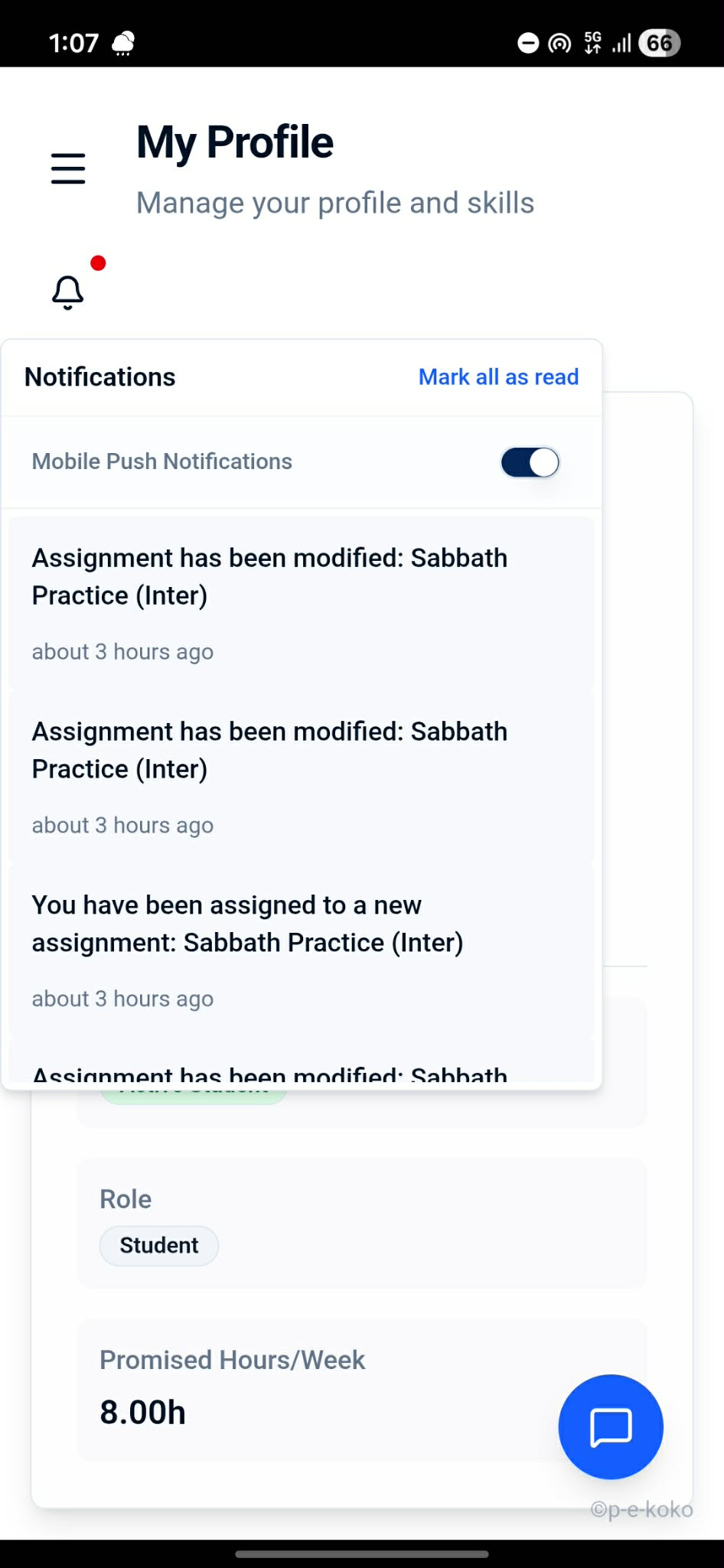
Enable Mobile Push Notifications

  1. Open the AV-Scheduler app
  2. Click on "Bell Icon/Notification Icon"
  3. Enable "Mobile Push Notifications"

By doing this, you will get notifications from the app directly.

Mobile Push Notifications View